Showing posts with label how to create affiliate links. Show all posts

Thursday, 15 December 2016

How to Build Your Own Amazon Affiliate Links

To create your own affiliate link for Amazon, at least in the United States, it’s actually fairly simple…

Locate the ASIN for a Product


See the red highlighted areas to locate the ASIN for the product.  Notice, you can copy it out of the URL – it’s the 10-digit code, or you can copy it directly off the page in the details area.


Locate Your Amazon Affiliate Tracking ID


You’ll log into your Amazon Associates Account, and in the top left, you’ll find your Tracking ID.

So, taking the the pieces identified above and replace ASIN and the your_Associates_ID in the following template URL:
http://www.amazon.com/dp/ASIN/?tag=your_Associates_ID
This now becomes:
http://www.amazon.com/dp/B00A2T6X0K/?tag=headpreviehea-20

How to Verify Your Link Will Work

At least Amazon was nice enough to create a link checker so you can breathe freely knowing you’ll get credit for your link building – click the following link…
https://affiliate-program.amazon.com/gp/associates/network/tools/link-checker/main.html

Plug your link in, submit it, and you’ll be notified whether your link will work.


What Will You See if it Didn’t Verify?


Notice that I changed the -20 at the end of my Tracking ID to -21. Amazon sees that this is not a valid tracking id and fails.


An EVEN BETTER Way to Create Your Affilate Link…

Yeah, so I showed you the basics of creating your very own affiliate link…but, what if you don’t want to have to remember the format for the url, or, even better, what if you want to send someone to a search results page and you don’t have an ASIN.  Well, it seriously couldn’t be any easier than this:
  1. Navigate to the page you want to share as an affiliate link on Amazon.com
  2. Just put your “tag” at the end of the URL
SERIOUSLY – it’s that easy!  So check it out…
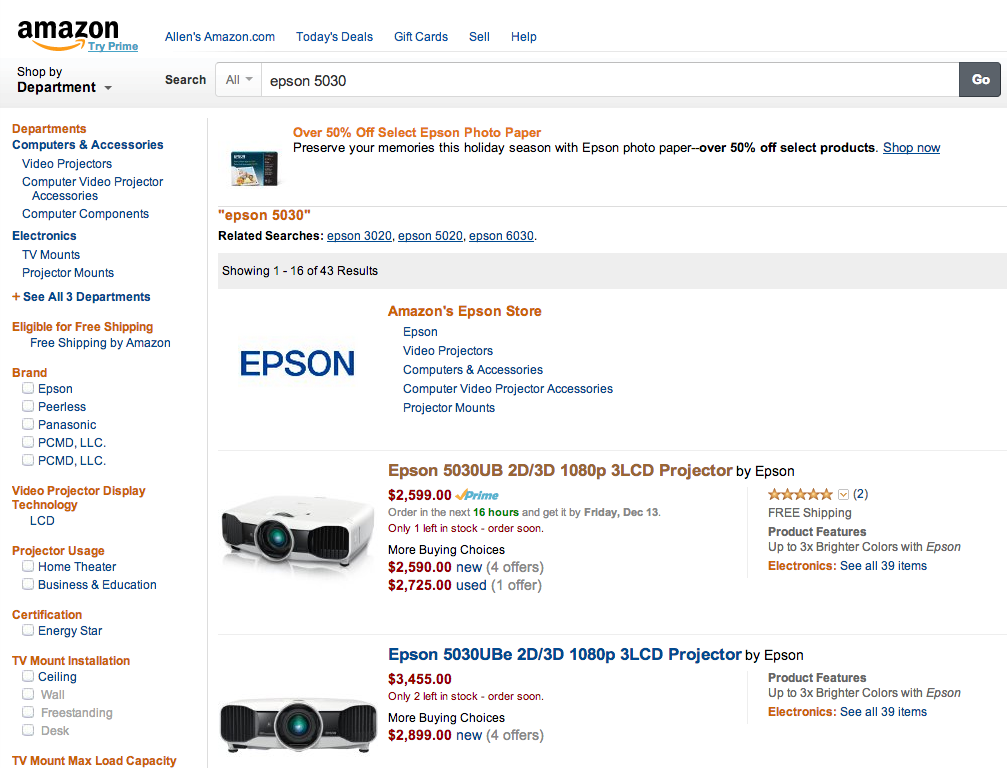
Amazon Search Results Page
Here, I just searched for the Epson 5030. This is your standard search results page.

This is the link that was produced in the browser’s url bar for this particular search:
http://www.amazon.com/s/ref=nb_sb_noss_1?url=search-alias%3Daps&field-keywords=epson%205030&sprefix=epson+50%2Caps&rh=i%3Aaps%2Ck%3Aepson%205030
Yeah, that looks nasty, but check this out.  All you have to do is add your tag to the url…see, the highlighted section for what I added:
http://www.amazon.com/s/ref=nb_sb_noss_1?url=search-alias%3Daps&field-keywords=epson%205030&sprefix=epson+50%2Caps&rh=i%3Aaps%2Ck%3Aepson%205030&tag=headpreviehea-20
Am I sure that will work?!  Well, let’s take a look…we have that handy link checker from above:

As you can see, by adding the tag at the end of the URL, we’ve successfully created an Amazon Affiliate Link that we’ll get credit for!

Remember, if it wouldn’t have been a valid Affiliate Link, you would have gotten a failure message as displayed above.  Also, I want to demonstrate that the link checker is actually smart enough to make sure you’re actually using an affiliate link and not just a page from Amazon…
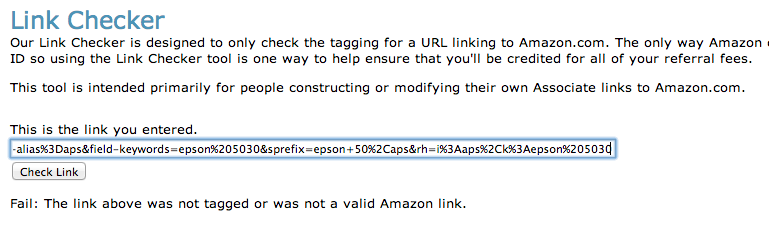
Original Search Results URL Failed Validation
This is the original search results URL from above, but without the added portion of the URL which includes my tracking ID. Notice it fails indicating there was no valid associate tracking id included.

And, while I demonstrated using a search results page, you can easily do the same by copying the URL out of a product page and adding your &tag at the end of the URL.  The & is extremely important so don’t forget it!  

How do I Know You’re Not Feeding Me a Line of…..

Just to put your mind at ease, this information is actually available on a help page on Amazon’s Affiliate program help site – good luck finding it on your own!
https://affiliate-program.amazon.com/gp/associates/help/t64/a1?ie=UTF8&pf_rd_i=assoc_help_t64&pf_rd_m=ATVPDKIKX0DER&pf_rd_p=&pf_rd_r=&pf_rd_s=assoc-center-1&pf_rd_t=501&ref_=amb_link_385181222_2

Wrapping Up

I hope you found this information helpful. I literally went looking for it tonight and couldn’t find much useful (trustworthy) information out there so I decided to do some research and some playing around.  I’ll be using this resource as a reference for myself and I hope you’ll bookmark it and do the same! Considering this is how I earn most of my money online, I figured it was time to figure this thing out!
Please share this with your friends and followers on Facebook and Twitter, and subscribe to my newsletter!
If you have any questions or comments, please leave them below.


Friday, 9 December 2016

How to cloak your affiliate links


Why should I cloak my affiliate links?

If you search online for it, there are tons of reasons for people to redirect their affiliate links. The “historical” reason for cloaking affiliate links is hiding that you’re an affiliate for the search engines. Now I’m not one to think the search engines are stupid enough to be fooled by an easy script like the one I’m providing below, but there are more reasons. The funny thing is that it’s called cloaking affiliate links because of that history, but I digress. Let me give you the three reasons why I do it and why I think every affiliate should be cloaking their affiliate links:
  1. Ease of management
    You sometimes have to change your affiliate links. If you have to change them in more than one place, it’s bound to be a painful exercise, so you want to centralize management.
  2. Prevent leaking PageRank to advertisers
    While sometimes you might want to “hide” for a search engine that you’re an affiliate, for me the reasoning is actually the other way around. Affiliate links are ads, and those should be nofollowed or otherwise prevented from leaking PageRank to the advertiser. Instead of nofollowing each and every link, which is painful and you’re bound to forget at some point, why not make sure search engines can’t follow the link at all?
  3. “Clean” links
    It might be obvious when you’re linking to Amazon that the link points to Amazon, but when I link to say, Genesis, using my affiliate link, the link would point to shareasale.com, which in turn would redirect to Genesis. So the URL of the link would be ugly and wouldn’t tell you where you’re going to. Instead, my “clean”, cloaked version of that affiliate link reads:https://yoast.com/out/genesis/ That is a lot more telling about the destination isn’t it? I think it’s more user friendly.

Cloaking affiliate links, the how to

The basic process of cloaking affiliate links is simple:
  1. Create a folder from where you’ll serve your redirects, I use /out/.
  2. Block the /out/ folder in your domains robots.txt file by adding:
    Disallow: /out/
  3. Use a script in your redirect folder to redirect to your affiliate URLs.
Step 2 makes sure search engines won’t follow the redirects, but we’ll add some extra safety with our script. Step 3 could be as easy as writing each redirect in your redirect directory’s .htaccess file manually. I personally prefer something that’s a bit easier to manage, which is why I’m giving you a little redirect script I wrote below. As a bonus, this should be easier to get working on NGINX too.

Affiliate link redirect script

This script consists of three parts. The index.php file is the file that handles the actual redirects, it does a 302 redirect and sends an X-Robots-Tag header along, which makes sure the search engines that obey those headers aren’t allowed to index or follow the URL, should you forget the robots.txt exclusion.
The redirects.txt file is a comma separated file with a very simple format:
name,destination-url
For instance:
yoast,https://yoast.com
It should always have the first line:
default,http://example.com
Where you can change example.com to your domain. This will make sure that people who try to redirect to non-existing redirects get redirected to your homepage.
If you install these two files, the script will already work. With the above setup, going to /out/?id=yoast on your server would redirect you to https://yoast.com.
Now I’m a bit of a URL freak and I actually like my URLs even cleaner than that, so there’s a bit of .htaccess involved as well. It’s only 5 lines and basically makes sure that you can link to /out/yoast and that would redirect you as well. This has the added bonus of preventing people from opening your redirects.txt file, so they can’t check out all your redirects.

Neat huh? You can download the files here, or view their source here. If you run NGINX, this gist contains some sample code for how to make that work.
Let me know in the comments if and when you use it and whether you run into any issues.
Note: I’d written about this topic in the past, specifically how to do it with WordPress plugins, the Analytics bit of that post might still be very useful.