Showing posts with label adwords. Show all posts

Friday, 13 January 2017

4 Ways to Promote Your Products on Social Media

Do you want more sales from social media?
Looking for new ways to share your products on social?
The latest features from Pinterest, Snapchat, Facebook, and Instagram can help you get your products seen by more people.
In this article, you’ll discover four ways to promote your products on the top social media platforms.
4 Ways to Promote Your Products on Social Media by Michelle Polizzi on Social Media Examiner.

#1: Add Links to Your Products in Instagram Stories

Now that Instagram feeds are arranged by popularity rather than in chronological order, it’s more challenging to get visibility for your business. Posting Instagram stories can help you get in front of your target audience. Instagram also lets you include links and mentions in your stories, which will make it easier for viewers to browse and shop your products.
Take a look at this Instagram story from social media influencer Caila Quinn. She included a link to a yellow bar stool because many of her followers had asked for more information about it. Notice the See More prompt at the bottom of the video, which encourages viewers to swipe up.
Influencer Caila Quinn includes both a mention and a link in her Instagram story.
The mention in this Instagram story is also tappable (as shown below) and takes followers to the official Lulu & Georgia Instagram page.
Caila Quinn leverages her influencer status to promote Lulu & Georgia in her Instagram story.
When viewers swipe up on the See More tab, they’re taken directly to a page on Caila’s blog, which features a number of products for sale, including the yellow leather bar stools and other items in her house. Instagram opens linked pages within the Instagram app, providing a seamless transition between browsing Instagram and shopping on an ecommerce site.
To see if this feature is enabled on your account, go to your Instagram home screen and tap Add Story at the top left. After you film a video or take a picturelook for four icons in the top-left corner: Link, Audio, Drawing, and Text. If you don’t see the Link icon, you don’t have access at this time. If you do see it, tap on the Link icon and paste your link.
Instagram story links provide users with seamless in-app shopping.
If you don’t have linking enabled in Instagram Stories, you can still take advantage of the feature two ways:
  • Choose businesses or publishers who have audiences that align with yours. They can draw attention to your account by mentioning you in an Instagram post. Make sure you have a featured link at the top of your profile where people can browse your products.
  • Work with influencers who often get access to features before everyday brands. An influencer can talk about your post in an organic way to create interest in what you’re doing.

#2: Import Your Online Store to Your Facebook Page

Facebook business pages have traditionally been a great way to connect with your audience and promote products and events. Now you can feature your ecommerce page directly on your Facebook page with the StoreYa app for Facebook.
StoreYa’s WooCommerce Shop to Facebook plugin supports 30 ecommerce platforms including Etsy, eBay, Magento, and others. This example will show you how to connect a WordPress-supported WooCommerce shop to Facebook.
To get started, open your WordPress dashboard and click on the Plugins tab.
Add a new WordPress plugin from the Plugins tab.
Then search for the WooCommerce Shop to Facebook plugin by StoreYa.
Choose and activate the WooCommerce Shop to Facebook plugin.
After you install the plugin, it will appear in your Installed Plugins section in WordPress.
You'll know the plugin is activated when WooCommerce Shop to Facebook appears under Installed Plugins.
You’ll know the plugin is activated when WooCommerce Shop to Facebook appears under Installed Plugins.
Next, click the WooCommerce tab in the left sidebar (just above Plugins) and click Settings. You’re then prompted to go to StoreYa’s homepage. Click Connect Facebook Fan Page.
After your store is imported through the StoreYa app, make sure it's connected to Facebook.
After your store is imported through the StoreYa app, make sure it’s connected to Facebook.
Now you’ll see the Import your WordPress Store Onto Facebook page. Note that you can add other ecommerce stores, like Etsy and eBay, by clicking Choose Another Import Solution.
Paste your ecommerce store URL in the field and click Continue.
Type in your ecommerce page's URL to connect your shop to Facebook.
Type in your ecommerce page’s URL to connect your shop to Facebook.
Wait a few moments for the page to load and then click the green Preview button.
Now you’re taken back to StoreYa, and if everything worked correctly, you’ll see a confirmation message that says “Well done! Your Facebook store is ready.”
You'll receive a confirmation on StoreYa once your Facebook store has been successfully imported.
You’ll receive a confirmation on StoreYa once your Facebook store has been successfully imported.
Click the Visit Facebook Store button to see what your store looks like.
Browse your new Facebook store to see if everything was imported correctly.
One great feature of the app is that it imports all of your categories, so your products remain in the same hierarchy as your ecommerce site. This is also true when you connect your store through Etsy or another ecommerce platform.

#3: Display Your Products in a Pinterest Showcase

One of Pinterest’s most promising new business features is Showcase. It acts as a virtual storefront for businesses and lets you put your best products on display in a rotating gallery that can easily be updated.
Lowe’s featured a variety of holiday-themed boards in their showcase throughout the month of December. They included buyable pins that link back to their website, as well as inspirational and informational pins that link to other related websites.
Lowe's has an exemplary Pinterest showcase that features both promotional and helpful material.
Lowe’s has an exemplary Pinterest showcase that features both promotional and helpful material.
To set up a showcase for your Pinterest business page, go to your page and click the red Add button above Build Your Showcase.
Your Pinterest showcase will be waiting for you as soon as you log into your business page.
Next, you’ll see the Edit Showcase window with five slots for adding featured boards. Choose the boards you want to feature. Keep in mind that this is designed for buyable pins and standard pins, so it might be beneficial to feature the items you have for sale.
Choose five Pinterest boards to include in your front-page showcase.
After you’ve selected your featured boards, click Save. You’re then brought back to your homepage where you can view your newly created showcase.
Pinterest's Showcase feature makes business pages look cleaner and more professional.
Pinterest’s Showcase feature makes business pages look cleaner and more professional.
The best part of the Showcase feature is that you can change and adapt it at any time depending on your business goals. As always, it’s a smart idea to test the type of content you post and the frequency of your posts to see how your customers best respond.

#4: Get Personal With Customers on Snapchat

Snapchat ads, which appear between friends’ stories, are reserved for well-known brands with large advertising budgets. For businesses that don’t have the resources or brand recognition to pursue such advertising, Snapchat stories are a free strategic channel for promoting an ecommerce business.
Take a look at cost-conscious clothing retailer Everlane, for example. The company posted a holiday-themed Snapchat story that both engaged viewers and generated brand interest in a non-promotional way.
The story followed two brand ambassadors as they performed random acts of kindness, including handing out Everlane beanies to strangers, buying coffee for people in line at Starbucks, handing out a free AMC gift card, and buying lunch for a construction crew.
Everlane's Snapchat story showed a brand ambassador handing out a movie gift card.
Everlane’s Snapchat story showed a brand ambassador handing out a movie gift card.
After showing their audience which gift they were going to give, they recorded each person’s reaction to the random act of kindness.
Everlane's Snapchat story showed a surprised woman receiving a free gift card.
The Snapchat story showed a surprised woman receiving a free gift card.
The company then urged their followers to “go out and spread those good holiday vibes” with the world around them.
Everlane urged their Snapchat followers to spread good vibes at the end of their
Everlane urged their Snapchat followers to spread good vibes at the end of their “5 Acts of Giving” Snapchat story.
This well-planned Snapchat story illustrates two effective tactics to better engage with your audience.
First, Everlane was able to engage people both in person and in digital spaces. Online retailers usually interact with customers in online spaces only, so using a Snapchat story to interact with people in real life is unexpected, and therefore memorable and impactful. The two women who received free Everlane beanie hats will forever remember the positive interaction with the company.
Everlane's Snapchat story shows how ecommerce brands can interact with people in the real world.
Everlane’s Snapchat story shows how ecommerce brands can interact with people in the real world.
Second, the free lunch, coffee, and movie gift card provided a less-direct brand experience than the beanie, since it didn’t involve an Everlane product. These acts show the company’s caring side and reinforce their commitment to honestly priced, ethically sourced clothing. This tactic balances the free product giveaway so the Snapchat story doesn’t seem purely promotional.
In their Snapchat story, Everlane handed out free lunch to show the human side of the business.
As you craft a Snapchat story for your business, consider how you can generate interest in your products while reinforcing your brand message. Your goal is to create a memorable experience that makes an impact on digital viewers in real time.
Conclusion
Social media can be a powerful source of ecommerce revenue, so don’t miss out on the latest features today’s social platforms have to offer.

What do you think? How do you use social media for your ecommerce business? What tips can you offer? Please share your thoughts in the comments below.


Sunday, 27 November 2016

Google AdWords Expanded Text Ads: Best Practices For The New Format


Expanded Text Ads (ETAs), announced in July of 2016, are considered by most industry observers to be the biggest change to Google Adwords in 16 years.
Google’s new ETAs provide for an increase of 50 percent more ad space. Plus, ETAs pack in a few other exciting features as well.
Numerous strategies and best practices have been developed over the years for the standard text ad format, but unfortunately, most of these don’t translate to expanded text ads. And, businesses are now having to scramble to update their ads before Google stops supporting the old format in January.
Before we get into the nitty-gritty of how to best handle expanded text ads, let’s get to know them a bit better.

Dissecting the Expanded Text Ad

Below is a comparison between the expanded text ad format and the standard text ad format.
unnamed-3.png
The components of the expanded text ad are as follows:

Two Headlines (Shown in lavender in the left side of the image above)

As opposed to standard text ads, ETAs have two headlines — a main headline and a secondary headline. Each headline can use up to 30 characters, as compared to the prior format of one headline with 25 characters.

Display URL and Path Fields (Shown in Green)

When creating ETAs, the final URL has to be entered first (above the headlines) and the display URL is created automatically based on that. There are two optional path fields available to extend the display URL by up to 15 characters each.

Description (Shown in Gray)

ETAs have one long description field with a maximum length of 80 characters. This compares to two fields of 35 characters each with standard text ads.
Now that we’ve gone over the guts of what makes ETAs, let’s get started on some best practices in order to take full advantage of them.

1) Use Keywords and Convincing Copy in Your Headlines

The main headline is the section that most people will see first and pay attention to. Put your most vital information here and make sure to include the main keyword you are targeting in the associated ad group. If you have a long keyword term, then just put your entire keyword in the main headline.
The secondary headline is best for supporting information. This is where you’ll reference the main benefit or USP of your product or service, or stress the urgency of your offer.
Keep in mind that your secondary headline may not always be shown in full. This is because, while you’re allowed up to 30 characters, Google determines ad display based on pixel-count. For example, wider characters such as “W” take up more space. So, if your two headlines go over the allowed number of pixels, Google may trim down your secondary headline. In most cases, your ad preview will show how your ad will look but it is a good idea to allow some breathing room. 
headline-eta.png
Unlike standard text ads, you can now do so much more after adding your keywords. You have some creative freedom to craft a headline that demands attention. Use language that will appeal to your target audience to convince them to interact with your ad. This combination is sure to increase your click-through rates considerably.
Below is an example of an expanded text ad that has been very successful. It blends in keywords (DDoS Protection and Stop DDoS) very well with urgency and value-add.
Screen_Shot_2016-09-29_at_12.25.07_PM.png
Here is another example of a compelling ETA. It combines keywords (User Behavior Analytics) effectively with an attractive offer (Free Guide) and the target audience (CISO).
Screen_Shot_2016-09-29_at_12.28.27_PM.png

2) Utilize the Description to Differentiate Your Product or Service

After grabbing attention with your headline, use the description to provide supplementary information to convince searchers to click through to your page. The best way to utilize this section is to include an additional benefit, a feature, and a call-to-action (CTA) or offer. A CTA such as “Start Free Trial,” “Shop Now” or “Download Free Guide” will let users know exactly what to expect on your landing page and will boost conversions.
Remember, the description is the final attempt to get a searcher to click-through to your site instead of others—so use your extra description space wisely. Be sure to differentiate your product or service from the competition and make sure that users know why your brand is their best option.

3) Make the Best of the New Display URL

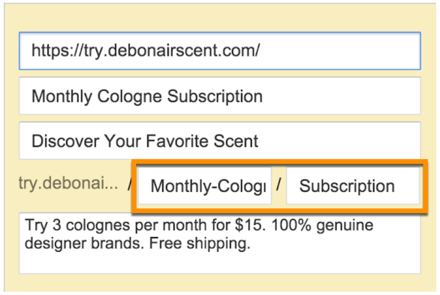
The two new display URL path fields are optional, but you will almost always want to use these. They are excellent places for adding your keywords. If you have a long keyword, you can break it up and use both path fields for your keyword. Otherwise use one field for the keyword and use the other for a call-to-action, especially if you were not able to do this in the description field.
url-paths.png
If you are creating an ad for a keyword containing a competitor name or a trademarked term, you are not allowed to use this keyword in the headlines or the description. But Google does allow you to use such a keyword in the URL path fields. This is the only way that you can get a competitor or trademarked term in your ad copy.

4) Mobile Ad Guidelines

Given that a large chunk of your audience will be using mobile devices to view your ads, you need to make sure that your ad works well on mobile.
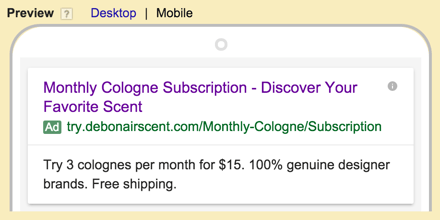
With standard text ads, Adwords allowed you to create separate mobile ads. However, ETAs don’t differentiate between devices, which means that the same ad and the same copy will be displayed to searchers across all devices. ETAs viewed from a mobile device may have headlines broken up into two lines if they’re too long. Because of this, it is important to format your ads in a way that will work effectively both on desktop and mobile devices.
The mobile preview feature in the ad editor will show you how your mobile ad will likely look and you can adjust your copy based on that.
mobile-ad-eta.png

5) A/B Test Your New and Old Format Ads

While ETAs may show up for all the keywords in your ad group, they won’t necessarily attract more clicks than your standard text ads. In fact, it’s possible that you may even see a decline in your click through rate (CTR).
Instead of dropping your old ads right away, try adding ETAs to the same ad groups with old ads that have served you well in the past. Compare the performance of the two, and alter and evolve your ETAs until they match or surpass your standard text ads.
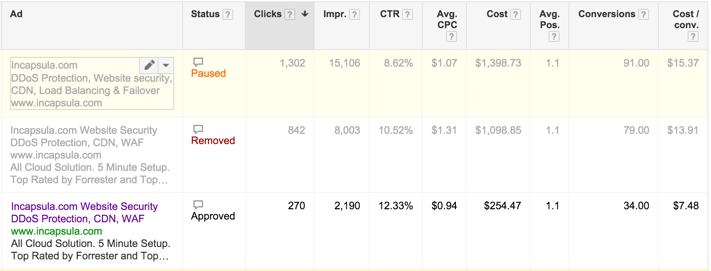
In most of our tests though, the expanded text ads have performed significantly better than standard ads. Below are some A/B tests that we have run.
A/B Test 1: The 2 ETAs below had a combined CTR of 10.9% - an improvement of 26% over the already excellent 8.62% CTR of the old standard text ad during the same timeframe.
Screen_Shot_2016-09-29_at_7.16.47_PM.png
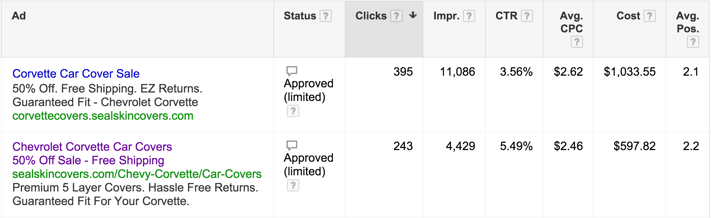
A/B Test 2: The ETA below had a CTR of 5.49% - an improvement of 54% over the standard text ad.
Screen_Shot_2016-09-29_at_12.41.50_PM.png
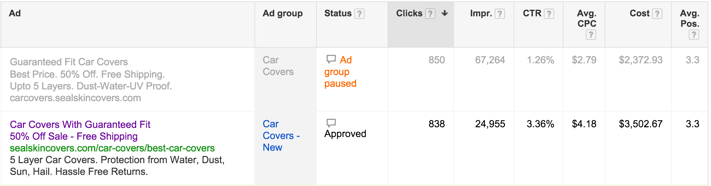
A/B Test 3: The ETA below had a CTR of 3.36% - an improvement of 167% over the standard text ad.
Screen_Shot_2016-09-29_at_12.53.17_PM.png

6) Increasing Quality Score with ETAs

Having a good quality score for your keywords and ads is an absolute must for success with AdWords. In order to achieve high quality scores, you have to ensure that your ads are as relevant as possible to user search queries. It is also important to achieve a high click through rate for your ads, as this provides a direct signal to Google that users are finding your ad useful. There are a few key things to take into account when creating ETAs which will help your quality score.
You should always include keywords in your headline as well as the display URL path fields. If you are bidding on a competitor name or trademarked term, and do not use it anywhere in your ad copy, you will get a very low quality score. So it is crucial to add these in the path fields of the display URL as we noted in the last section.
You should also use as many ad extensions as possible with your ads. When combined with ETAs, this greatly increases the amount of screen space that you can claim with your ad, leading to high CTRs and high quality scores.
Use ad extensions to further elaborate on the features, benefits, attributes and offers related to your products and services. Since you likely had to shorten these in your main ad, you can use extensions to fill in the gaps. Also add reviews, ratings, location and call information if you have these available, and they are relevant for your business.
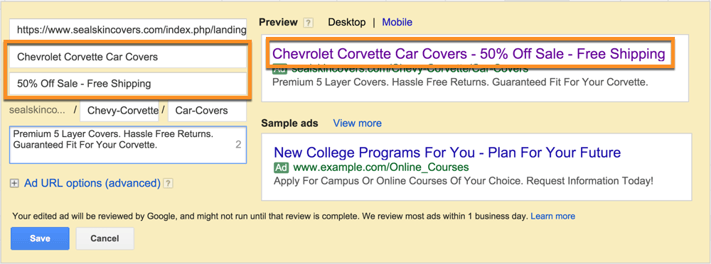
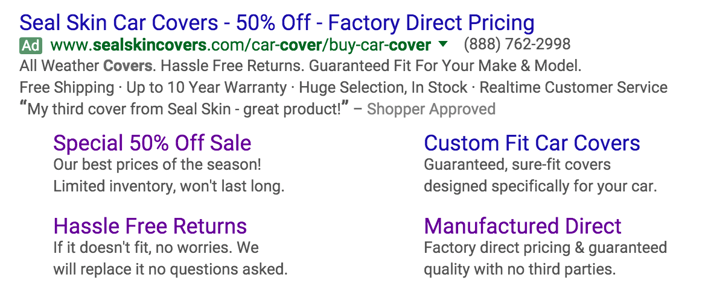
For example, consider the ad below that combines an ETA with call, callout, review, and sitelinks (with 2 line descriptions) ad extensions. That’s a significant chunk of Google’s search results page!
sealskin_car_cover_ad.png

7) Changing Old Ads to the New Format

If you have a lot of standard text ads in your account, changing them all over to expanded text ads may seem a bit daunting. You can make your job a little easier by adding new ads in bulk.
You can download your current ads to a CSV file, make all your changes, and then upload them back to your Adwords account. Using this approach will add new expanded text ads in the same ad groups and campaigns as your current ads. It will not remove any of your current ads. Here’s how you do it.

Export Your Current Ads

Step 1: In your AdWords account, click the Campaigns menu, then click on the Ads tab
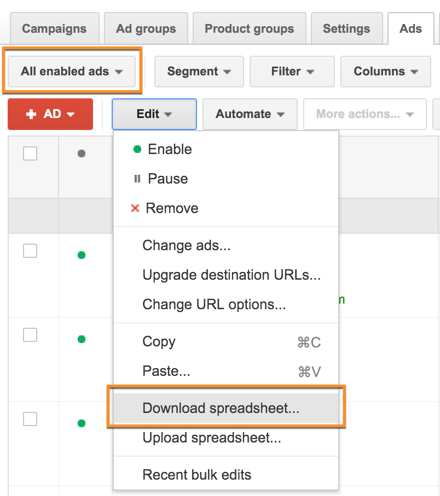
Step 2: Make sure the “All Enabled Ads” option is selected
Step 3: Click Edit > Download Spreadsheet
download-spreadsheet.png
Step 4: Choose Excel .CSV format
Step 5: Click “Advanced editing” and uncheck all boxes except “All Editable Columns”. Then click Download and save the file on your machine. 

Make Changes

Step 1: Open the CSV file in Excel
Step 2: For each ad that you want to create an expanded text ad for, add values in the Headline 1, Headline 2, Description, Path 1 and Path 2 columns. You can use values in the Ad, Description line 1 and Description line 2 columns (in the same row) as a guide since these represent your current ad.
Step 3: Delete the Ad, Description line 1, Description line 2 and Display URL values from the same row.
Step 4: Go to the Ad Type column and change “Text ad” to “Expanded text ad”
Step 5: Repeat steps 2, 3 and 4 for each expanded text ad you want to create. NOTE: If you are new to this process, it will be best if you try and add only one expanded text ad the first time. In this case, you should just delete all rows other than the row you just edited.
Step 6: Save the file as a CSV

Import Your New Ads

Step 1: In your AdWords account, click the Campaigns menu, then click on the Ads tab
Step 2: Click Edit > Upload Spreadsheet
Step 3: Choose the file you saved and click Upload and Preview
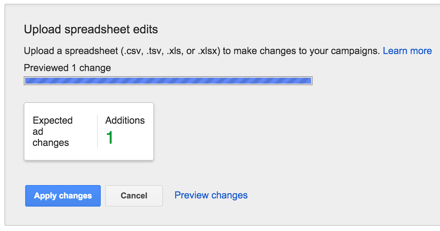
Step 4: Google will now show you the number of ads that will be added. This should be the no. of new expanded text ads that you added in step 2 of the Make Changes section above. If there are any problems with the data you added, it will be shown in this box.
Screen_Shot_2016-09-30_at_5.16.24_PM.png
Step 5: Click on Preview changes. Even if you had any errors in step 4 above, you should do this to determine exactly where the problems are.
Step 6: Verify that each expanded text ad is shown correctly in the preview
Step 7: If everything looks good, click Approve changes to add your new ads. If you see any problems here, click Reject changes. Go back to your CSV file in Excel, fix the problems and then try again. 

Conclusion

Now that you’ve got a better grasp on expanded text ads and how to use them, you can get started on your own ads. Remember, you don’t want to pause your standard ads just yet—these new processes are going to take a bit of practice before you become an expert.
The clock is quickly running out; Google’s last day of standard text ad support is January 31, at which time we’ll all be forced to adopt the new expanded text ad format. Rather than scrambling at the last minute, it’s best to get started now. Work out the kinks and find out the best ad copy that works for you.